2023-06-30

How to deal with the big number of images in PicFinder

 Most of the AI Art Generators I use create four images with one prompt, and most of the time I can use one or two images out of the four. Most of the AI Art Generators also save your images with your profile - so you can come back and look at them and decide which one you want to download. 

PicFinder is different: It generators far more images than any other art generator, but it does not save them with your profile. So you have to download them in order to save them for later usage. You have two options: you can either download them as 512x512 px files, or you can enhance them and download the enhanced version (which takes more time of course). 

It took me a bit of time till I found a satisfying solution for me. I quickly go through the images and download all those I find interesting. 


For example, take these three Indian elephant images:On first glance I like all three of them. However when it comes to make prints out of them I'd rather prefer not the front view (the tusks are much too yellow), but the other two. But I am not sure yet. 

So I keep them in the original size. I can always go on:

https://www.pixelcut.ai/image-upscaler

and upscale / enhance them.


By the way: From the beginning of my AI Art activities on (which means from November 2022) I use the name of the art generator or an abbreviation in the title of the image file. You will ask "why?"

Well, some art generators allow commercial use and some do not. In order to be on the safe side I now can see where the image file comes from and can use it commercially or not. 

So in case I plan to use an image file as design on my Zazzle shop (for example to create a puzzle with it) I know exactly which images I can do this with. 

2023-06-28

Stablecoq AI

 In the meantime the number of AI Art generators which I am using to create images with has been risen to nine:

  • Nightcafe Studio
  • Lexica AI
  • Blue Willow
  • PicFinder AI
  • Bing Image Creator
  • Stablecoq AI
  • Color Pop AI
  • Deep Dream Generator
  • Dreamlike
All of them I use without paying anything. There are some I use every day, and there are some which I use not so often. 
Stablecoq has become one of my favorite AI Art Generators. 
1. Quality of Images
The image on the left - a portrait of the pharao Ramses - is a good example of the excellent quality of the images Stablecoq is generating. 

2. Various Aspect Ratios
It not only offers Square, Portrait and Landscape formats, it also offers aspect ratios for Mobile and desktop.

3. Various Models
I must admit that I haven't played around with the models yet - always work with the standard model displayed which is Kandinsky.

4. Search for Images and Prompts
This is most helpful - not only when looking for a certain prompt but also as an inspiration for generating AI Images in general.

All in all I can only recommend this AI Art Generator!

2023-06-26

Abstract Cityscape - digitally colored with Gimp

 Before I discovered Color Pop AI as an AI Generator specialised on creating coloring pages I tried to create coloring pages with other AI Art generators. I still thought about coloring these pages manually - with my markers for example - and I was not too happy about the results. Then I decided to refresh my knowledge about coloring digitally with Gimp. There are quite a few videos on YouTube teaching you how to do it, and I decided to give Gimp a try.

Here is my first colored in image. The image itself was created with Leonardo AI. I learnt two things during the process of coloring:

1. It takes more time than coloring something manually. My graphic tablet is not working properly anymore, and I work on a laptop. That means that my right index finger is doing the work. 

2. With coloring an image digitally you can endlessly change the colors, try out new combinations and such. On one side this is okay; on the other side one is tempted to overwork the image.

With all that said I love the process! 

2023-06-23

One prompt, two very different images

 I have been using quite a number of Artificial Art Generators. In the last weeks I've added Stablecoq AI and PicFinder AI to my toolbox. Both are free to use. Stablecoq AI works with tokens. I found out however, that every time I use it tokens are added... This is a bit strange, but I take it as it is. 

Now with PicFinder you get numbers and numbers of variations of an image. These images are not saved to your profile - so you have to look through them and decide which ones you want to keep. You can then download them in the original size or download them in an enhanced size. Once you leave the page the images are gone. 

I now tried the following prompt with both Stablecoq and Picfinder:

beautiful anatomically correct fairy princess, anatomically correct no hands, Dappled Fashionable Fairy tale, Idyllic by artist "Carlo Crivelli", 3D shading, elegant, ethereal, fantasy

Now you might ask "why 'no hands'?" Well, AI Generators still have problems with the rendering of hands; so I decided to ask the AI to go without.

Here's the image created with Stablecoq.


As you can see, no hands, but otherwise quite the result you would expect with the prompt.

Carlo Rivelli by the way was an Italien Renaissance painter who lived from 1430 to 1495.


And here is the image created by PicFinder (well, one of the many images; I must admit I had difficulties to select one image.


I was very much surprised that the fairy on the image had anatomically correct hands with the correct number of fingers. 

Up to now I have not looked up paintings by Crivelli in order to find out which image is more similar to his style; it is up to you to do this. But in anycase I am very pleased with the outcome.

I think these two images are a perfect example of the various ways the different AI Generators interpret prompts. I can only encourage anyone who is interested in creating AI Art to try out the same prompt a few times with other Generators!

2023-06-21

Cute Elephant - colored version

I mentioned in one of my latest blogpost that there is a AI Art Generator which is specialised on creating coloring pages. Its name is Color Pop AI. I created three coloring pages: a cute little elephant, a koi fish and an image showing a shoal of fish.

Now it was time to do the coloring. I gripped my alcoholbased markers and the sheet with the cute elephant. I've mentioned before in one of my posts that for me there is quite a difference between doing digital art and painting / coloring with a marker or a paintbrush: Whereas both for me are enjoyable activities, doing art digitally is less relaxing than painting the traditional way.  And: traditional painting/ coloring definitely takes more time! 


So I decided to throw in now and then something which needs a marker or a paintbrush.

The medium I used here are alcohol based markers. However, I plan to also use my waterbased markers without adding water. Actually I got many, many waterbased markers, and I am looking forward to my next coloring project.

2023-06-19

AI Art on Print on Demand platforms

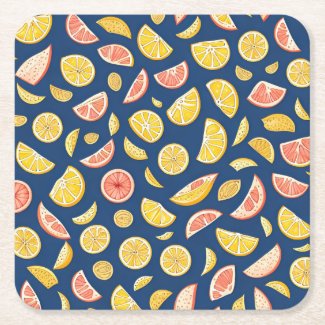
SOLD!

Just a few days ago I sold this paper coaster to a dear friend living in the United States of America. In the meantime she got the coaster and is very pleased with the quality and how the design looks like.

Uploading AI Art to Print on Demand platforms is definitely a way to use your images. Of course you have to check the size and make sure the image is big enough for the product you want to put it on. 
 

2023-06-16

Color Pop AI

 Since the time I have been generated my first AI Images I have been looking for a way to generate coloring pages. I know that many people are selling their coloring pages, but for now that is not my intention. Coloring pages are a wonderful way to try out color combinations with alcohol based markers or practise the way of applying paint to the paper. You will find a lot of free coloring papers on the internet.

However I want to use my own designs. Today I learnt in one of the facebook groups I am a member of about a new AI Generator which generates coloring pages: Color Pop AI. Of course I had to try it. I submitted the prompt: "cute little elephant", and in a very short time, four pdfs in the size of DIN-A4 (letter size) were created. These pdfs are not saved with your profile, so you have to download all the pages you like for later use.


After you have downloaded the pdf you can use free online converters in case you need the pdf as a jpg or png. 

Or you can transfer the drawing with a light table to a thicker surface, for example watercolor paper and have a go at it with watermedia.